
Maintained by ChatMark · Suggest a correction
How to export ChatGPT conversations to PNG images
Turn selected ChatGPT messages into shareable PNG images, with theme options and automatic splitting for long conversations.
To export a ChatGPT conversation to PNG, open ChatMark in the conversation, select the prompts and answers you want to share, and click Download PNG. One image downloads directly; multiple images are packaged in a ZIP file. PDF and PNG share one 72-hour extension trial, with Pro required afterward.
When to use a PNG instead of copying text
PNG is useful for sharing a short explanation in a group chat, placing a worked example in a presentation, or keeping a visual record of selected messages. The recipient can view the layout without a Markdown editor.
The output renders the selected conversation content, rather than capturing the whole browser window. Review the selected text for private details before sharing. PNG stores pixels, so it does not offer selectable text or PDF-style text search. Choose Markdown for editing or PDF for searchable documents.
Export selected messages as PNG
- Install ChatMark using the button below, then open a signed-in private conversation on ChatGPT. Refresh any page that was open before installation.
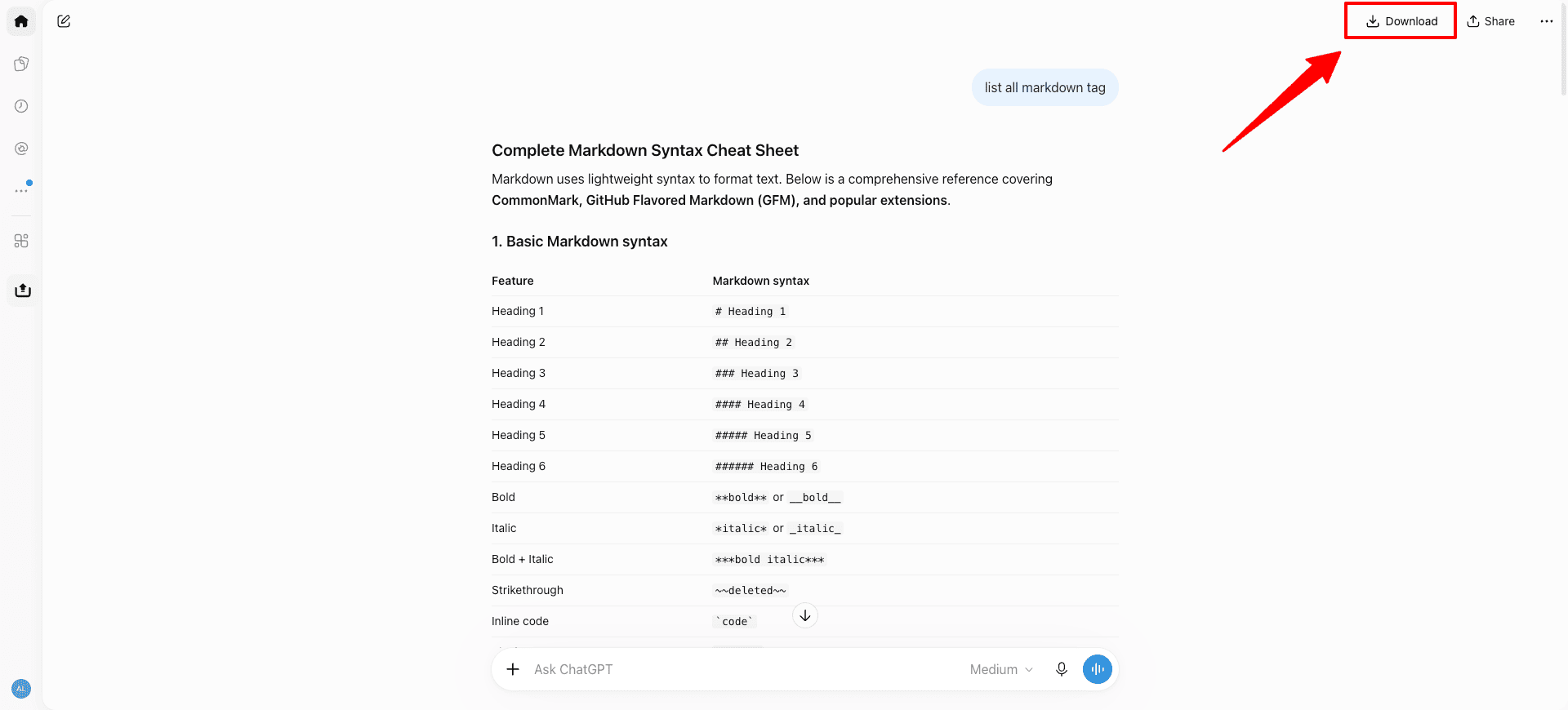
- Click Download beside Share, or use the ChatMark toolbar icon.
- Select the messages you want. For a self-contained explanation, include the question as well as the answer.
- Open Account and settings → Export settings to choose the theme and PNG export style.
- Click Download PNG and wait for generation to finish. Open the PNG, or extract the ZIP to view multiple images in order.
Choose a theme and image length
The export theme supports Light mode, Dark mode, and Follow ChatGPT. Light mode is the default. Follow ChatGPT uses the page theme at the start of export. These settings affect PDF and PNG without changing the ChatGPT page itself.
PNG images are 960 pixels wide, with height determined by the selected content. Computer preview is the default export style and is intended for viewing on a computer. Fewer images produces fewer, taller images when possible; very tall images may briefly look blurry while scrolling in a desktop image viewer.
Long conversations split between complete question/reply pairs, keeping each pair and its attachments together. A particularly long single pair can still produce a tall image in either mode. Selecting fewer messages is the most direct way to make a shorter excerpt.
Why did I receive a ZIP file?
A single image downloads as PNG. When the export produces multiple images, ChatMark packages them in a ZIP so you can download them together. Extract the archive before uploading individual pictures to a chat or presentation.
Generation shows progress and can be canceled. If a very large export exceeds ZIP capacity, select smaller groups of messages and export them separately.
Check the images before sharing
Open the exported files and inspect the beginning and end of the exchange, code blocks, and any included media. ChatMark tries to load supported images locally; unavailable media may appear as placeholders. A PNG export does not archive every attachment's original file.
ChatMark exports the current conversation branch. Shared conversation links, other branches, and bulk export of multiple conversations are not supported.
Is ChatGPT PNG export free?
PDF and PNG share one 72-hour extension trial with no payment method required. Exporting PNG does not start another trial. Afterward, link this browser installation to an account with active Pro access. See current plans; Markdown remains free.
Install ChatMark below to try a short image export. The extension user guide covers account linking, export issues, and the browser debugging notice that may appear during generation.