
Maintained by ChatMark · Suggest a correction
How to export ChatGPT conversations to a searchable PDF
Save selected ChatGPT messages as a PDF for reading, searching, copying text, and printing on A4 or Letter paper.
To export a ChatGPT conversation to PDF with ChatMark, open the conversation, select the messages you need, and click Download PDF. The resulting document keeps text searchable and selectable. You can choose A4 or Letter paper and a light or dark export theme.
PDF and PNG share one 72-hour extension trial without a payment method. After the trial, PDF export requires active Pro access linked to this browser installation.
When a PDF is useful
Choose PDF when you want to read an exchange later, send a document with consistent page dimensions, or print selected questions and answers. For example, select the final explanation and its original question from a long troubleshooting discussion, then keep that focused exchange as a reference document.
If you want to keep editing the content, export Markdown. If the destination is a group chat or a presentation that accepts pictures, export PNG images.
Download a conversation as PDF
- Install ChatMark through the Chrome Web Store button below.
- Sign in to ChatGPT and open a private conversation. Refresh the page if it was already open when you installed the extension.
- Click Download beside Share, or open ChatMark from the browser toolbar.
- Review the message selection. Remove tangents and repeated answers; keep questions that explain the context.
- In Account and settings → Export settings, choose your paper size and export theme.
- Click Download PDF, wait for generation, and open the saved document in a PDF reader.
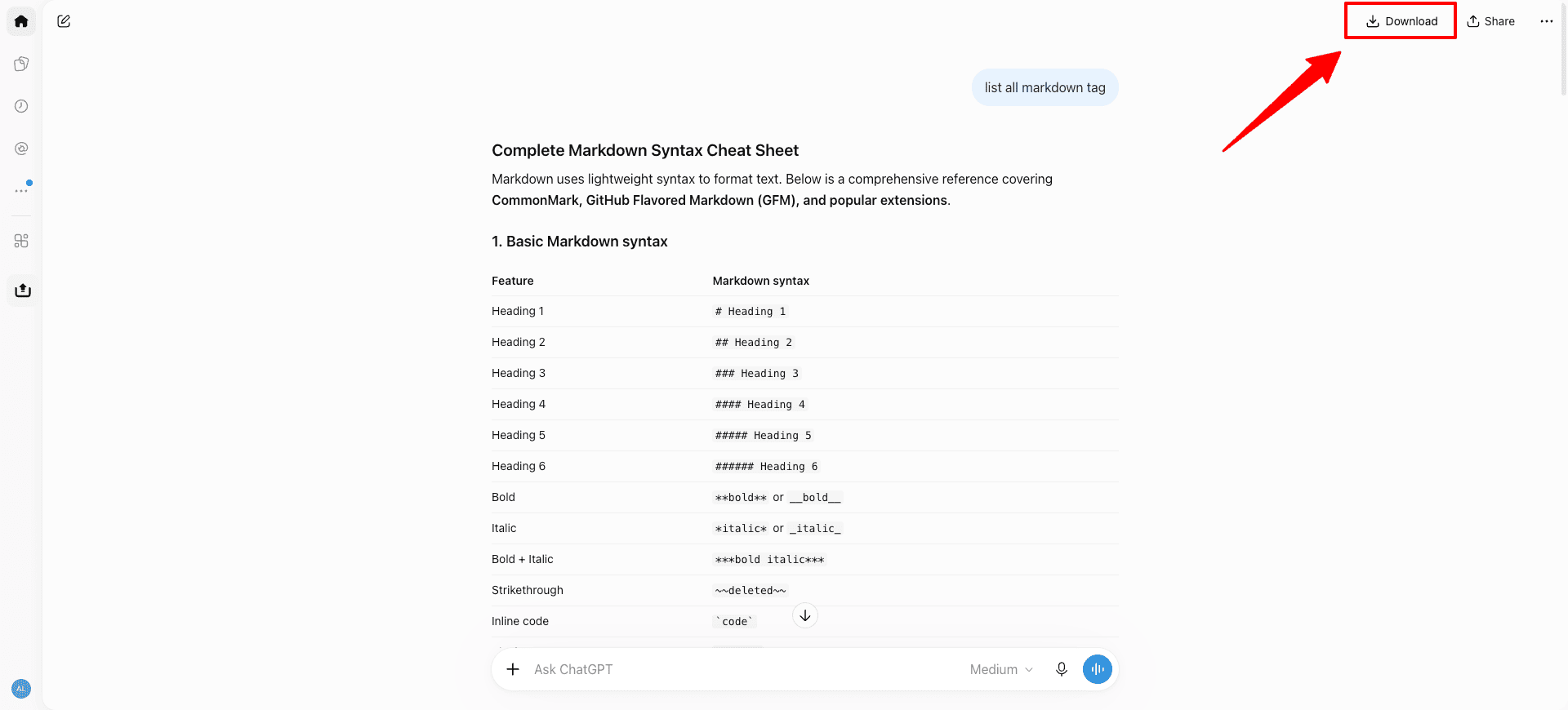
Only selected messages from the current conversation branch are included, in their original order. ChatMark does not batch export multiple conversations or collect every regenerated answer from other branches.
Set A4 or Letter before exporting
A4 is the default. Choose Letter when that matches the paper you will print on. The setting saves automatically for future PDF exports and can be changed without signing in to ChatMark. It does not change PNG image width.
Export themes include Light mode, Dark mode, and Follow ChatGPT. Light mode is the default and is a practical choice for paper printing. Follow ChatGPT uses the page theme at the start of export. Check your print preview before printing a dark document.
Search and copy text in the saved PDF
ChatMark renders the document in an isolated extension page and uses the browser print engine. The resulting text can be searched and copied; the PDF is not simply a collection of PNG screenshots.
Open the file and search for a distinctive phrase from an answer. Try selecting a sentence, then check page boundaries, a code block, and any tables or formulas. Text inside an embedded image is still image content; PDF export does not promise OCR for screenshots or attachments.
What if generation stops or an image is missing?
The browser may display a debugging notice and open a temporary extension page during generation. Closing either can interrupt the export. Let the process finish; if it fails, retry with a smaller selection.
Supported images are loaded where possible. Media URLs that require a login or have expired may produce placeholders. Save important original attachments separately: a PDF is a readable record of the selected content, not a guarantee that all source files have been archived.
For missing messages, first check the active conversation branch and refresh ChatGPT. More troubleshooting steps are in the extension user guide.
Continue after the trial
The 72-hour trial is shared with PNG and does not automatically become a paid subscription. For continued PDF exports, choose a plan on the pricing page, then sign in through the extension's account settings to link this browser installation to the same Pro account.
Install ChatMark below to try saving a short conversation as PDF. See the privacy policy for browser permissions and data handling.