Maintained by ChatMark · Suggest a correction
ChatMark extension user guide
Learn about message selection, copying MD, export themes, PDF settings, PNG exports, and remote media limits.
Start by exporting a conversation. ChatMark adds a Download button in the top-right corner of ChatGPT, beside Share, highlighted in the screenshot below.
First export: find the Download button
- Open ChatGPT, sign in, and open an existing private conversation.
- Click Download in the top-right corner to open the ChatMark message drawer.
- Select the messages you want to save, then choose Copy MD or Download MD for your first export. You can also try Download PDF and Download PNG.
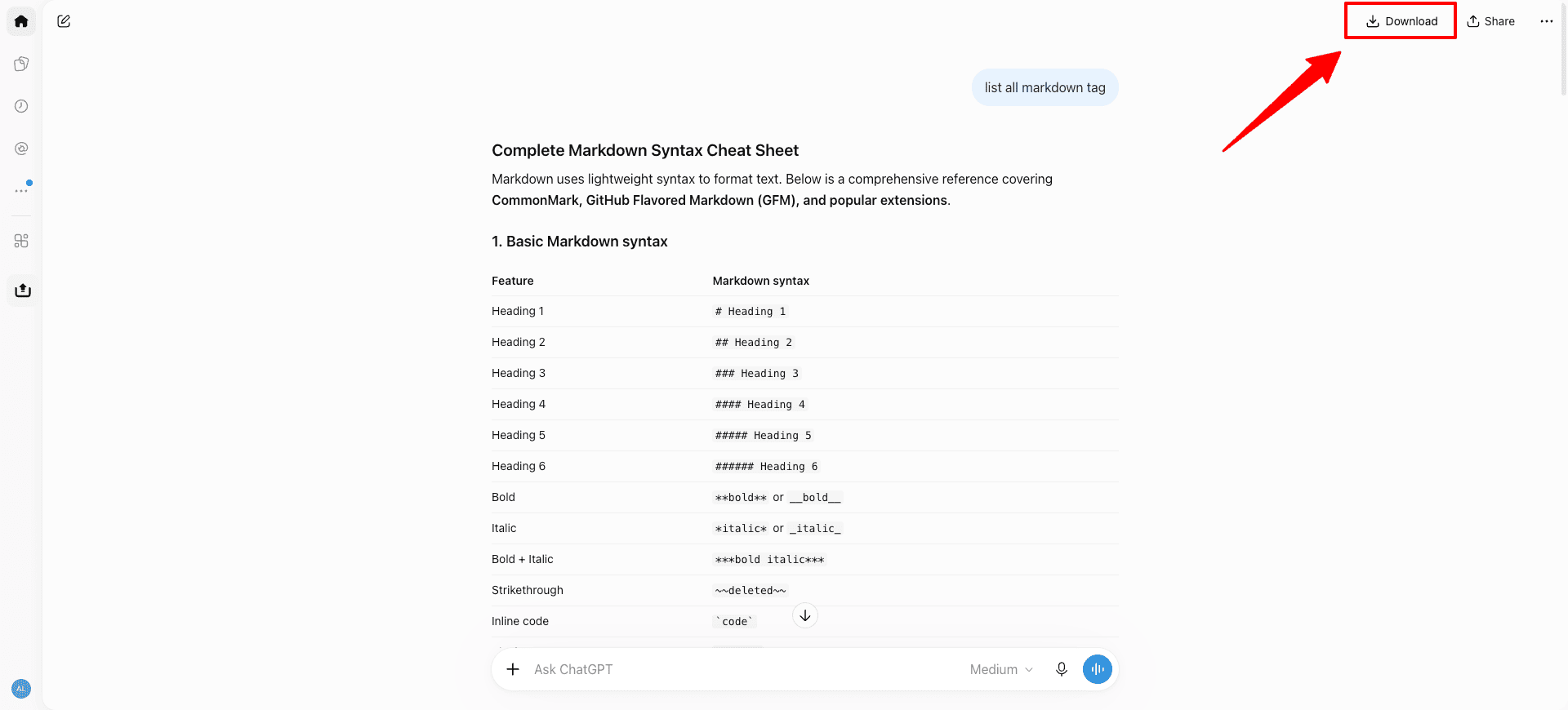
The screenshot shows the English interface; the button appears in the same position in Chinese. Refresh any ChatGPT tabs that were open before installation. You can also click the ChatMark icon in your browser toolbar. If it is hidden, find and pin ChatMark in the browser extensions menu.
Markdown stays free forever. PDF and PNG share one 72-hour trial without a payment method. Upgrade to Pro if you regularly save searchable PDFs or share conversation images.
Select the messages you need
Sign in to ChatGPT and open a private conversation. Use the Download button beside Share or the browser toolbar icon. The drawer selects all exportable user and assistant messages in the current branch by default. Select all, invert the selection, keep answers only, or choose messages individually.
Exports preserve the original order of selected messages and exclude other branches, system messages, and tool events. ChatGPT shared links, bulk conversation exports, and exports of every branch are currently unsupported.
Copy MD and download Markdown for free
Copy MD writes your selection to the clipboard as plain Markdown text for pasting into notes or an editor. Download MD saves the same content as a .md file. Both are free without limits or a ChatMark account.
The content includes the conversation title, source URL, export time, and selected messages, preserving Markdown structures for code blocks, tables, lists, links, and formulas. If copying fails, retry or download MD.
Export theme
Open Account and settings → Export settings in the drawer, then choose an Export theme:
- Follow ChatGPT: use the light or dark theme of the ChatGPT page when you start exporting.
- Light mode: always use a light theme. This is the default.
- Dark mode: always use a dark theme.
The theme applies to both PDF and PNG. It does not affect Copy MD or Download MD content, or change the theme of the ChatGPT page or extension panel. The setting saves automatically in the current browser installation for subsequent exports and does not require signing in to ChatMark.
PDF and paper settings
Open Account and settings in the drawer, then Export settings, and choose A4 or Letter. A4 is the default. Changes save automatically for subsequent PDF downloads and can be made without signing in to ChatMark.
PDF uses your selected export theme with searchable, selectable text. Paper size affects PDF only and does not change PNG width.
Export PNG images
Download PNG renders your selection as 960-pixel-wide images using your selected export theme. Height varies with content. In Account and settings → Export settings, PNG export style defaults to Computer preview, which makes the images easier to scroll through on a computer. Choose Fewer images to create fewer, taller images; these may briefly blur while scrolling in a desktop image viewer. The setting saves automatically and does not require signing in to ChatMark. Long conversations split between complete question/reply pairs, keeping each pair and its attachments together. An unusually long pair may produce a tall image in either style.
One image downloads as PNG; multiple images are packaged in order in a ZIP. PNG is an image format and does not provide PDF text search or selection. You can view progress or cancel generation. If a very large export exceeds ZIP format limits, select smaller groups of messages and export them separately.
Interactive elements such as sliders and checkboxes are exported as static content using the initial values saved in the conversation. You can't interact with these elements in the exported file.
Trial and Pro
Copying MD and downloading Markdown always stays free. PDF and PNG share one 72-hour extension trial without a payment method. Exporting PNG does not start an extra trial. Exports during the trial display a membership reminder.
After the trial, link the extension to a ChatMark account with an active Pro entitlement for unlimited PDF and PNG exports. Monthly, yearly, and lifetime Pro include the same export formats. After purchasing on the website, link the browser installation you want to use.
When is Pro useful?
- Archive, read, or print: save selected questions and answers as searchable PDFs with selectable text.
- Share explanations and results: export selected messages as PNG images, split long conversations between question/reply pairs, and download multiple images in a ZIP.
- Use multiple browsers: link each ChatMark installation to the same Pro account to use your membership on linked devices.
Compare monthly, yearly, and lifetime Pro plans. See the pricing and checkout pages for current prices. Paid plans charge immediately at checkout; the 72-hour extension trial does not automatically become a paid subscription.
Activate Pro in the extension after purchasing
- Visit the pricing page, sign in to your ChatMark account, and purchase your chosen plan.
- Return to ChatGPT, open Download → Account & settings, and click Sign in. Use the same account that purchased Pro and follow the prompts to link this browser installation.
- Return to the extension, confirm that your membership shows Pro, and choose Download PDF or Download PNG. If the state has not synced, refresh ChatGPT and retry, then check device management in your website dashboard to confirm this installation is linked.
Only need Markdown? Keep using it for free without purchasing.
Images, attachments, and remote links
Markdown images and attachments may reference remote URLs rather than include the original files in an archive. Some links require a ChatGPT login or expire over time. For long-term storage, download important original images and attachments separately. Reopening the source conversation may also require signing in again.
PDF and PNG attempt to load and render supported images locally. Media that cannot be resolved or loaded appears as a placeholder while text can still be exported. A PDF or PNG export does not mean every original attachment has been fully archived.
Common issues
Export issues after a ChatGPT update
ChatGPT is updated regularly, and changes to its pages or APIs may occasionally affect ChatMark exports. If an export fails, content is missing, or formatting looks incorrect, please use the Contact link at the bottom of the page to let us know. We’ll investigate and adapt as quickly as possible. Thank you for your patience while we work on a fix.
Please include your browser and extension versions, the steps you took, and any error message. Hide private conversations and account details in screenshots.
A browser debugging notice appears during generation
While generating PDF or PNG, the browser may show a notice that ChatMark is debugging and open a temporary extension page. Temporary pages are cleaned up after generation. Closing the notice or temporary page during generation may interrupt the export. Retry if it fails.
Messages are missing or media does not appear
Make sure you are viewing a private ChatGPT conversation while signed in. Refresh and reopen ChatMark. Sign in again if your session has expired. If a media URL is unavailable, check the original conversation and save the original file separately. The extension displays errors for access restrictions, rate limits, and generation failures.
Pro is active on the website but the extension asks for an upgrade
Check Account and settings to confirm this browser installation is linked to the account that purchased Pro and review its entitlement state. Manage linked devices in the website dashboard.
Permissions and privacy
See the privacy policy for browser permission purposes, local storage, trial sync, temporary file handling, and the data received by the membership service.