Maintained by ChatMark · Suggest a correction
How to export ChatGPT conversations to Markdown
Save selected ChatGPT prompts and answers as a free .md file, ready for notes, code editing, and reuse.
Want to export a ChatGPT conversation to Markdown? Open the conversation in Chrome, use ChatMark to select the messages you need, and click Download MD. You can also use Copy MD to paste Markdown into an editor. Both options are free, with no ChatMark account required.
When Markdown is the right format
Markdown keeps text editable. Use it to turn a troubleshooting conversation into project notes, keep a coding answer alongside your source files, or reorganize a research discussion into a draft. Unlike a screenshot, you can search and revise the text without retyping it.
A .md file stores text and formatting syntax rather than a fixed page layout. Its appearance depends on the editor that opens it. If you need a document for printing, use the PDF tutorial; for sharing a visual excerpt, use the PNG tutorial.
Export a conversation as a .md file
- Install ChatMark using the Chrome Web Store button at the end of this guide.
- Open ChatGPT, sign in, and enter a private conversation. Refresh the page if it was open before installation.
- Click Download, beside ChatGPT's Share button, to open the message drawer. The ChatMark toolbar icon also opens it.
- Review the selected messages. Keep the relevant question with its answer, or select answers only when the context is unnecessary.
- Click Download MD and open the saved
.mdfile in a Markdown editor. Use Copy MD instead if you want to paste the source text directly.
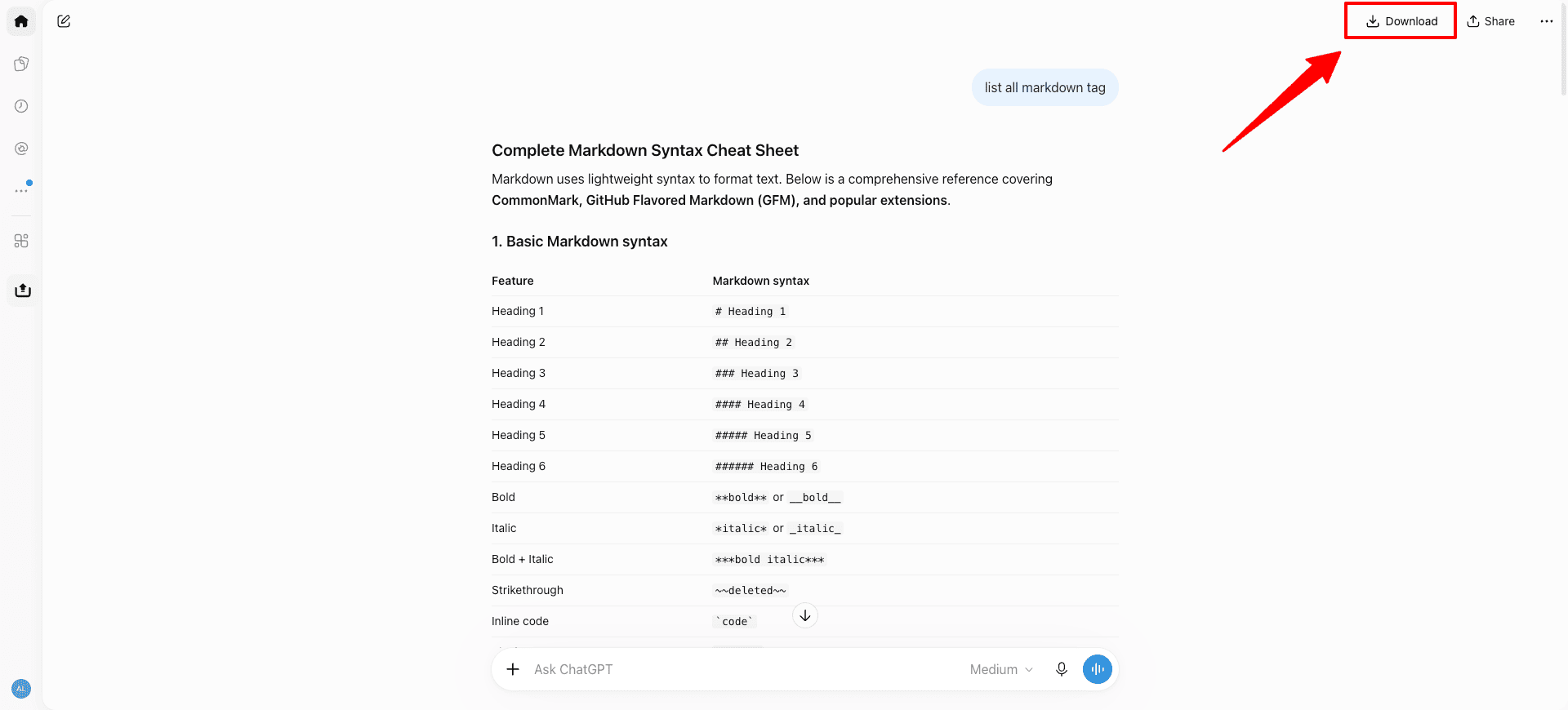
The export includes the conversation title, source URL, export time, and selected messages in their original order. It reads the current branch, so switch to the answer you want before opening the drawer. Other branches and system or tool events are not included.
Keep code blocks, tables, and formulas usable
ChatMark preserves Markdown structure for code blocks, lists, tables, links, and formulas where supported. Open the file in your destination editor and check a code block, a table, and any mathematical notation before relying on the saved copy.
Seeing backticks, table pipes, or formula delimiters in a plain text editor is expected: those characters describe formatting. Switch to the editor's Markdown preview to see the rendered result. Formula rendering depends on the destination editor's support.
For example, after saving a debugging conversation, rename the file for the issue it resolves and add your own verified fix above the original exchange. This keeps the conversation useful as working documentation.
Images and attachments need a separate check
An image link in Markdown is not a bundled image file. Some ChatGPT media URLs require a login or expire. Download important original images and attachments separately if you need a durable archive; keeping the .md file alone does not guarantee offline access to those files.
Common questions
Can I export just one answer?
Yes. Clear the selection and select that answer. Include its question if the answer would otherwise lose context.
Does Markdown require Pro?
No. Copy MD and Download MD are free without usage limits or a ChatMark account. The PDF and PNG trial does not limit Markdown exports.
What if copying fails?
Try Download MD to save a file instead. If messages are missing, confirm that you opened a signed-in private conversation, refresh ChatGPT, and reopen the drawer. Shared conversation links and bulk exports of multiple conversations are not supported.
Try it with one useful conversation
Install ChatMark below, select a short exchange, and download your first Markdown file. See the extension user guide for all settings and the privacy policy for permissions and data handling.